

Editing a guide
Stopping a recording opens the editor. Everything on the page is editable.
Name, intro, wrap-up
Section titled “Name, intro, wrap-up”The guide is renamed in the Name field at the top of the Edit view - the page title, the breadcrumb and the Library row all follow it. The intro and wrap-up blocks sit above and below the steps - type your own.
- Rewrite - click any step’s text and type. The original narration stays visible under it for reference.
- Reorder - the up / down arrows on the step card.
- Delete - the ✕ on the step card.
- Insert - Add step below on a card inserts under it; Add step at the bottom appends. Hand-added steps open their Details automatically so you can set what they do right away.
- Add check appends a pass/fail check with the check-type selector already showing.
- Remove screenshot - under the picture on an open step, when you want the step without the image. The step and everything else about it stay. You get ten seconds to undo, and a replay with Refresh screenshots as it runs turned on captures a new one.
Details: how a step replays
Section titled “Details: how a step replays”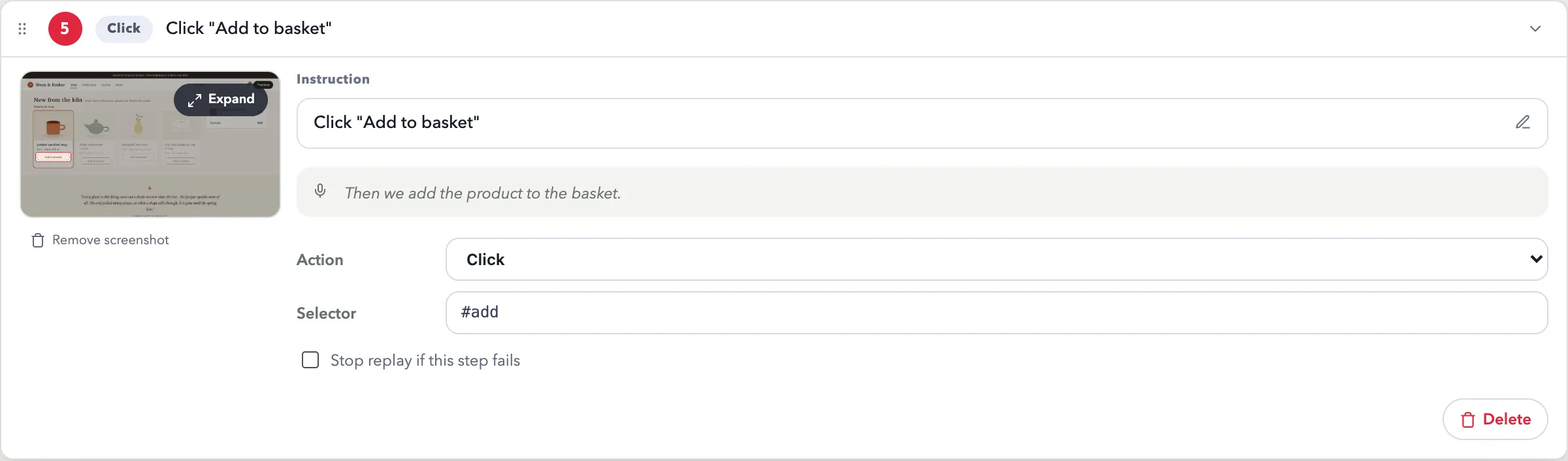
Every step has a Details expander showing what it does under the hood:
| Field | Meaning | Example |
|---|---|---|
| Action | click, type, key, go to, drag, note, check, screen, user input | Click |
| Selector | CSS selector for the target element | #add-to-basket, .cart > button |
| Value | typed text / key combo | mug, Ctrl+S |
| URL | for “Go to” steps | https://wrenandember.example/checkout |
This is how you fix a step whose selector broke after a redesign, or hand-craft a step Itra didn’t capture. A step with an action, a valid selector, and (where needed) a value will replay like a recorded one.
Example: adding a manual step
Section titled “Example: adding a manual step”Say the recording missed that users must accept a cookie banner first:
- Add step (or Add step below on the card above where it belongs).
- Text: Accept the cookie banner.
- In Details (already open): Action
Click, Selector#cookie-accept. - Replay - the step runs like any recorded one.