

Recording
Click the Itra icon on the page you want to document and choose New capture. The popup shows a short pre-flight - narration on or off, your mic status, an optional mic check - and Start capture is there. Once capturing, the icon shows a red REC badge, the tab joins a Itra capture tab group so you can see at a glance which tabs Itra is working on, and a small box in the corner of the page lists steps live as they’re captured.
What becomes a step
Section titled “What becomes a step”| You do | Itra records |
|---|---|
| Click / double-click | the element’s selector, its label, a screenshot with it highlighted |
| Type into a field | one step with the final value - e.g. Enter “mug” in “Search products” |
| Press Enter, Escape, or a shortcut (Ctrl/Cmd/Alt+key) | a key step, replayed later (Enter also submits the form) |
| Drag and drop | source and destination selectors |
| Navigate (address bar or SPA route change) | a “Go to” step |
| Resize the window | a screen-resolution step (see Replay for how these are enforced) |
Narrate while you work
Section titled “Narrate while you work”Talk through the work as you do it:
“First we search for the product we want… then we add it to the basket… now we check out and confirm the order.”
Itra records the audio for the whole session and, when you stop, transcribes it inside the extension using the speech model that ships with Itra. Each phrase is aligned to the step you were doing when you said it and shows under that step.
Tips that improve alignment:
- Say the intent as you do the action, not after (“we need to approve this request” while clicking Approve).
- Pauses are fine - silence just isn’t attached to anything.
The corner box
Section titled “The corner box”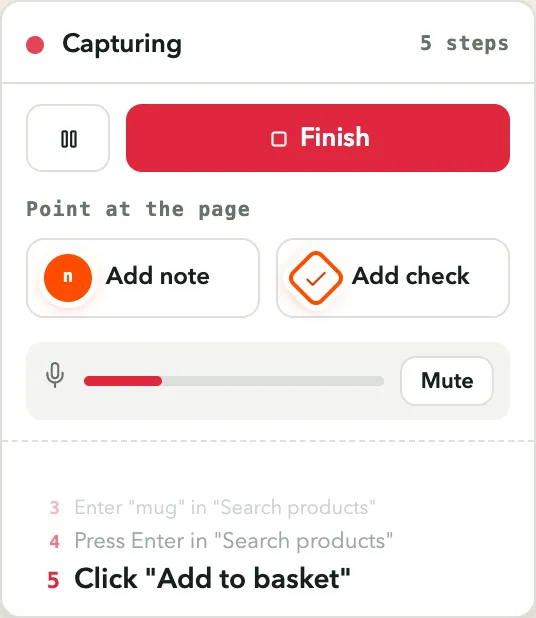
The box in the corner of the page is Itra’s only surface while capturing. Nothing is docked beside the page, so the page stays exactly the width it would normally be - which matters, because a guide captured at your desktop width should replay at that width too. The box carries the step count, the recent steps, a live mic meter with Mute (which keeps capturing your actions but not your voice), and Pause / Finish. It hides itself around every screenshot, so it never appears in one. If the flow opens a new tab, the box is simply there in the new tab too, and the steps you take there are captured.
Pausing
Section titled “Pausing”Pause (popup or the corner box) stops both capture and the microphone; anything you do while paused is not recorded. Resume picks up where you left off.
What is never recorded
Section titled “What is never recorded”- Passwords and usernames - the value is never stored. The step becomes a User input step, so on replay each person enters their own.
- Email addresses - masked in-page before anything leaves the tab.
- Plain keystrokes - typing is never key-logged; values arrive only through their input step (already redacted where sensitive).