

Exports (PDF, Confluence…)
Export in the editor, or Export/Share on a Library row, opens the export screen: pick a format, see exactly what will be exported, and export it. All exports are generated locally, offline.
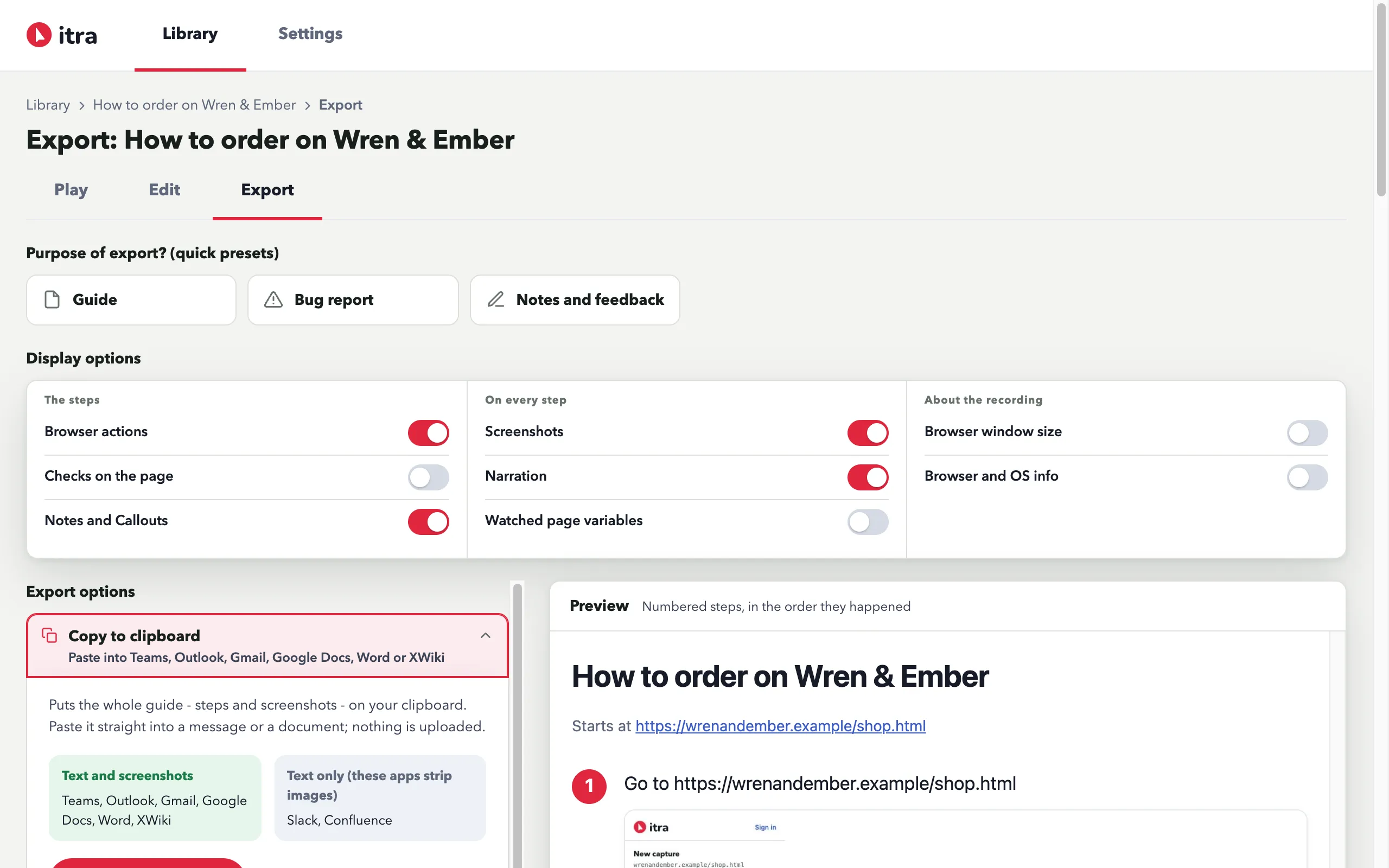
Three optional presets sit at the top - Guide, Bug report, and Notes and feedback - and each one sets the document’s shape and the switches that suit it. Guide and Bug report are the numbered walk-through; Notes and feedback groups what you said by the page you said it on, numbered 1, 1.1, 1.2 - the shape for handing a content review to whoever owns the site. Change any switch afterwards: the preset stays, the card reads Edited, and one line names the difference with a Reset control.
Eight What goes in switches decide what the document carries, for this export only: browser actions, checks on the page, notes and Callouts, screenshots, narration, watched page variables, browser window size, and browser and OS info. Checks, watched page variables, window size and browser info stay off until you ask for them. The defaults for Narration and Browser and OS info live in Settings → Exports.
However you set them, a note keeps the same number in every format - what reads 2.1 in the PDF is 2.1 on the clipboard and 2.1 in Jira.
Prompt for AI
Section titled “Prompt for AI”One section offers two local ways to hand your Callouts to your own AI tool. Itra does not contact an AI.
Copy prompt puts the text on your clipboard. It names each Callout’s page, exact element path and screenshot; paste it into a chat that accepts images, then drag in those screenshots.
AI feedback packet downloads a self-contained .zip. It includes prompt.md and every Callout screenshot named inside it, so there are no local image paths for the AI to chase.
Copy to clipboard
Section titled “Copy to clipboard”The one format that makes no file. Copy to clipboard puts the whole guide - steps and screenshots - on your clipboard, and you paste it straight into a message or a document. It arrives plain: your steps and screenshots, without Itra’s styling. Teams, Outlook, Gmail, Google Docs and Word keep the screenshots; Slack and Confluence keep only the steps.
Copies the steps so you can paste them onto an issue from the Itra popup - the screenshots are attached to the issue itself.
Self-contained HTML
Section titled “Self-contained HTML”Web page - one .html file with every screenshot inlined as a data URI. Opens anywhere, works offline, survives being emailed. Print styles are built in, so it also prints cleanly.
PDF opens the guide in a print-optimised view and brings up the print dialog - choose Save as PDF as the destination. Steps never split across pages; the numbered bubbles keep their colour.
Live .itra guide
Section titled “Live .itra guide”The replayable bundle - see Sharing guides.
Its preview never shows captured watched page variables because the .itra file never carries them.
Confluence (Word)
Section titled “Confluence (Word)”Confluence Cloud’s only native file import is a Word document - no HTML, markdown, or zip without marketplace apps. So the Word format builds a real .docx:
- title as a heading, intro, numbered steps, a screenshot under each step
- screenshots re-encoded to stay under Confluence’s ~5 MB document cap
To import: on a new Confluence page choose ••• → Templates and import → Import → Word and pick the file. The embedded screenshots become proper page attachments automatically.
Playwright (beta)
Section titled “Playwright (beta)”Downloads the capture as a best-effort Playwright .spec.ts, still in development - a starting point for a developer to review before running, never a faithful replay.
Locators are built from each element’s role and label where the capture holds them, with the raw selector as a flagged fallback.
Steps you did by hand and redacted values cannot run unattended, so they become TODOs and placeholders in the file.