

Replay
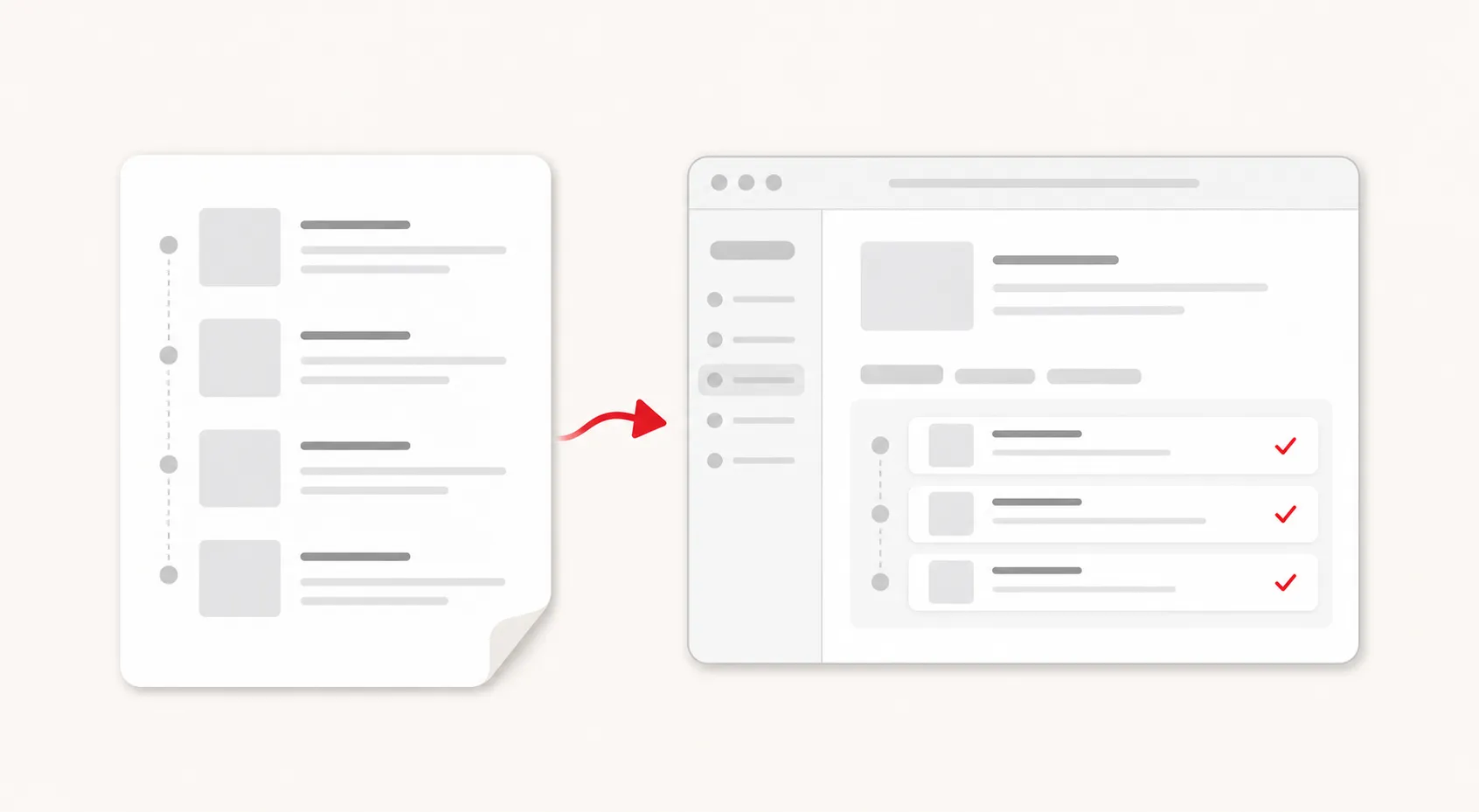
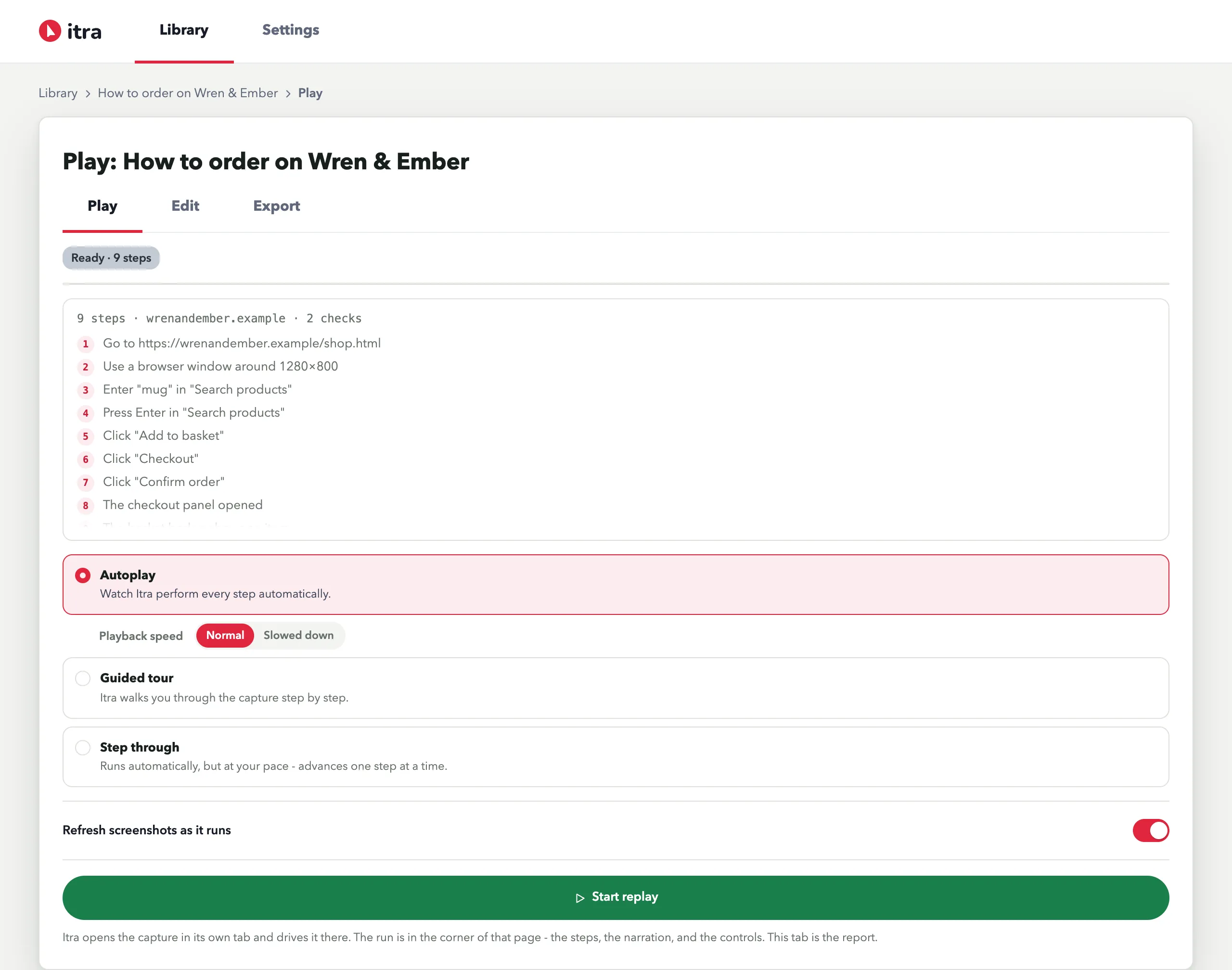
Replay opens the replay page in its own tab. Review the steps there, choose how the replay runs, and press Start replay - Itra opens the guide’s start page in a second tab, inside a Itra replay tab group, and drives the flow there.
The three modes
Section titled “The three modes”| Mode | What happens |
|---|---|
| Autoplay in my browser | Itra performs every step automatically. |
| Guided tour | Itra walks you through the guide step by step. |
| Step through | Runs automatically, but at your pace - one step at a time. |
Two surfaces, one run
Section titled “Two surfaces, one run”On the page being replayed, a small box in the corner shows the run’s progress, the step Itra is on and that step’s narration, along with the run’s controls. It follows the flow into any tab the flow opens. Nothing is docked beside the page, so the page stays exactly the width it was recorded at.
The replay page keeps the full step list, shows each step’s result as it runs, and becomes the run report when the replay finishes - it is a tab of its own, so it survives everything that happens to the page underneath.
What happens to each step
Section titled “What happens to each step”| Step | On replay |
|---|---|
| Click / key / drag / navigate | performed for real, target flashed first |
| Typed value | filled in |
| User input (usernames, passwords, anything handed over) | the replay pauses and hands control to you; it continues once you have done it |
| Check | evaluated - ✓ pass or ✕ fail with the reason inline |
| Screen resolution | enforced only across device classes (see below) |
Smart resolution handling
Section titled “Smart resolution handling”Recordings note the window size at start and on any mid-recording resize, because pages show different UI on mobile / tablet / desktop. On replay, enforced resolution steps only act when the current window is a different device class (mobile <768 / tablet <1100 / desktop) than the recording - recording fullscreen and replaying in a normal desktop window moves nothing. When a resize is needed it’s clamped to your screen, and if the recorded width still can’t fit, the tab is zoomed to emulate it. Untick Enforce on replay on the step to make it purely informational.
Refreshing screenshots
Section titled “Refreshing screenshots”The Refresh screenshots as it runs toggle on the replay page captures fresh screenshots during the replay - on by default when steps have none (an imported guide), and available any time to update stale shots on your own guides after a UI change.