

Getting started
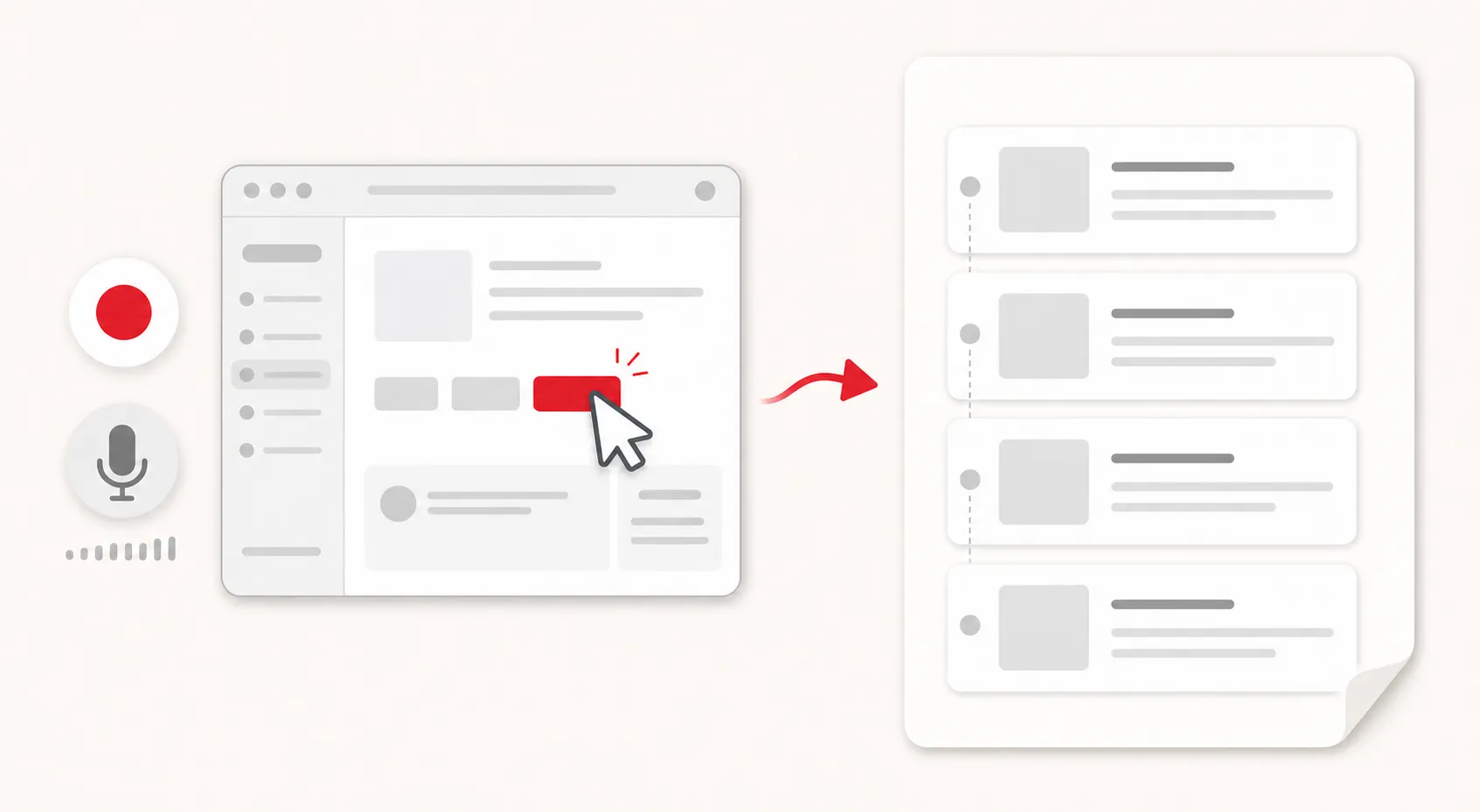
Itra is a Chrome extension. Recording, transcription, editing, replay and exports run on your computer.
Install
Section titled “Install”Install Itra from the Chrome Web Store.
- On the Itra listing, select Add to Chrome.
- Select Add extension when Chrome asks you to confirm.
- Pin Itra to the Chrome toolbar so it is ready when you want to start a capture.
Your first guide
Section titled “Your first guide”-
Open the page you want to document.
-
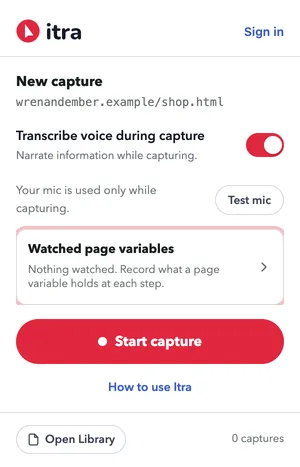
Click the Itra icon and choose New capture. The popup shows a short pre-flight - narration on or off, your mic status, and an optional mic check. Until you have allowed the microphone, Enable microphone opens the page where Chrome asks for it; skipping it still works, captures just won’t have narration.
-
Hit Start capture. A small box appears in the corner of the page and lists steps live as they’re captured.
-
Click, type and navigate as you normally would, and say what you’re doing while you do it:
“First we search for the product we want… then we add it to the basket… now we check out and confirm the order.”
-
Click Stop on the corner box. The editor opens; your narration is transcribed on the spot by the speech model inside the extension, and appears under the matching steps.
That’s it - you have a guide. Next: edit it, add checks, replay it, or share it.